
File Browser
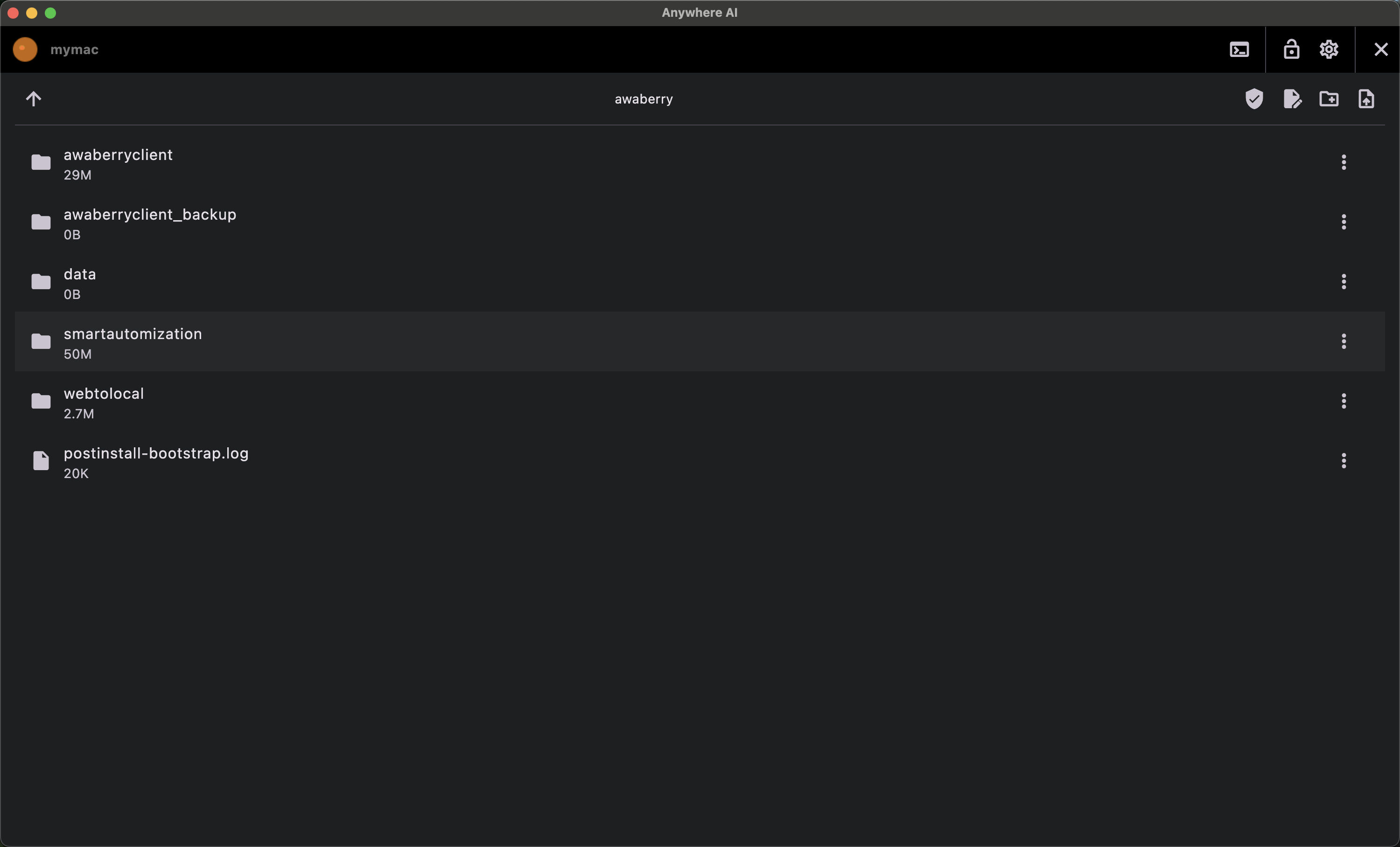
Work with files on the device
The File Browser lets you move around the file system of a remote device and manage files in both directions over the secure connection — without needing a separate SFTP tool. You can upload and download files, create, rename and delete files and folders, and open text files in a built-in editor with AI actions.
What you can do
- Navigate folders on the device and see file names and sizes; folders you cannot read are flagged.
- Upload files from your computer to the device.
- Download files from the device to your computer, or download a whole folder as a ZIP.
- Create file and create folder.
- Rename and delete files and folders (deletion asks you to confirm).
- Edit text files in the built-in editor, including AI actions.
- Turn on the admin/root user toggle to reach protected system paths.
How transfers work
Smaller uploads go directly over the secure SSH connection; your plan sets a maximum file size (up to around 1 GB). Larger uploads, and all downloads, are moved through S3 transport: the device uploads the file to S3 and your computer fetches it from there. This uses your own configured S3 bucket if you have set one, otherwise Anywhere AI's default storage — so S3 is always part of a download; only supplying your own bucket is optional. You configure a bucket under Integrations, not inside the File Browser.
For very large transfers the app suggests using Web-to-Local instead.
The built-in editor
Opening a text file loads it into the built-in editor, where you can make changes and save, with undo/redo and save as a copy. The editor also offers AI actions that work on the open file:
- Summarize — get a short summary of the file's contents.
- Explain — have the file explained to you.
- AI-edit — describe a change and let the assistant rewrite the file.
Transfer a file
- Open the device from Remote and choose File Browser.
- Navigate to the folder you want to work in; enable admin/root if you need a protected path.
- To send a file to the device, use Upload and pick the file from your computer.
- To bring a file back, select it and choose Download — or download a folder as a ZIP.
- To change a text file, open it in the editor, make your edits (optionally with the AI actions) and save.
The number of transfers and the maximum file size depend on your plan; see Licence & billing. Configure your own S3 bucket under Integrations.
Return to the device list or pick another tool.