
Web-to-Local
Reach a service on the device from your computer
Web-to-Local forwards a port from a remote device to your own machine, so a service that listens only on the device — a web application, an admin dashboard, a database — becomes reachable locally through the secure Anywhere AI connection. Nothing has to be opened to the public internet.
What you can do
- Configure one or more ports to forward from the device.
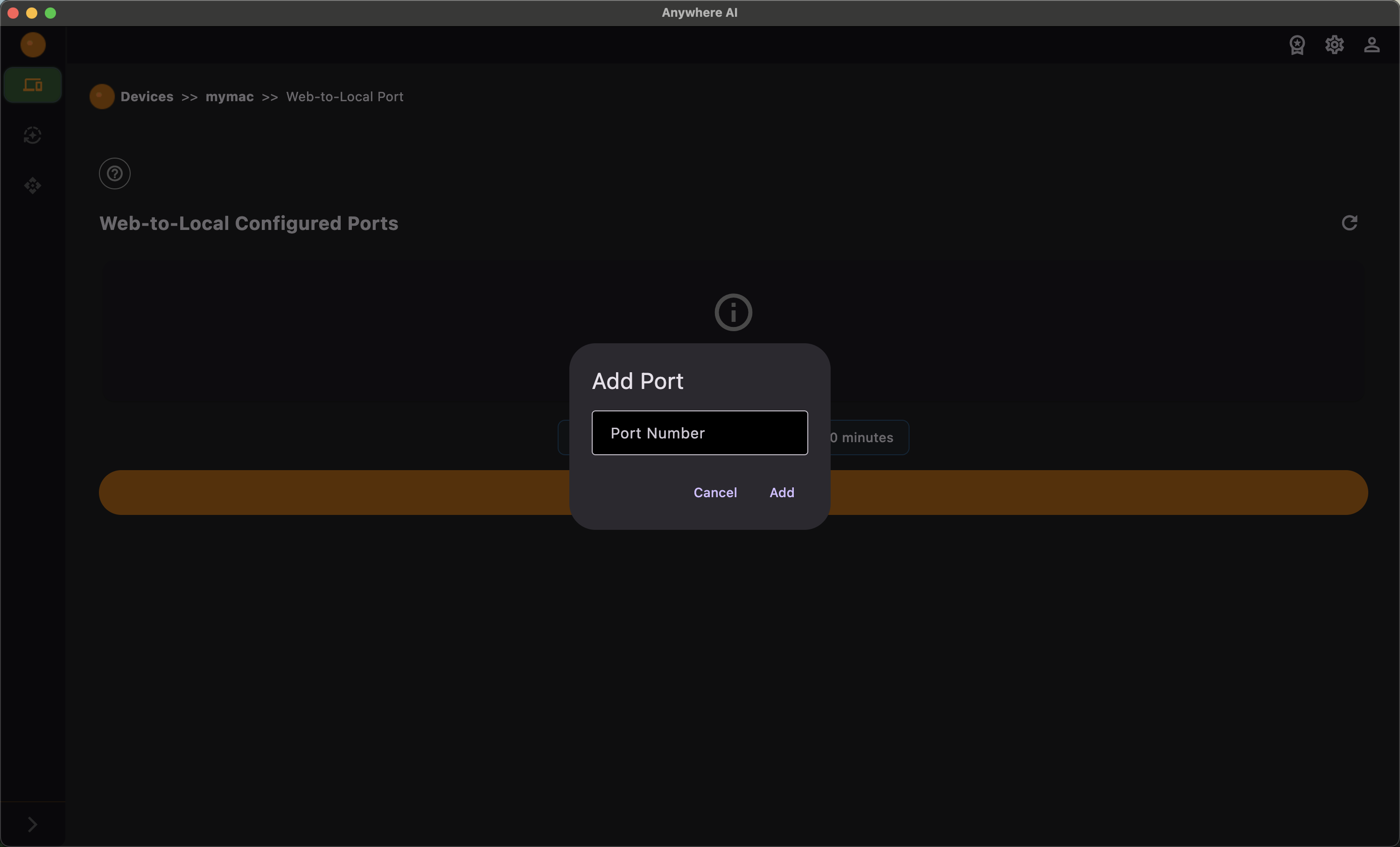
- Add, delete and configure each forwarded port.
- Start a forwarding session and get a ready-made connection script — offered as three separate options for Mac, Windows and Linux.
- See your daily Web-to-Local usage and stop forwarding when finished.
- Optionally schedule when a forwarding setup should run.
On the macOS and Windows desktop apps a native connection client is offered as well, with an option to open the connection automatically, just as in Remote Desktop.
If a port you configured is not actually listening on the device, Anywhere AI warns you and points you to the help page so you can check the service configuration.
Forward a service to your machine
- Open the device from Remote and choose Web-to-Local.
- Add the port the service uses on the device (for example a web app on port 8080).
- Start forwarding for that port.
- Copy the generated connection script for your operating system and run it locally.
- Open the service on your computer through the local port.
- When finished, stop the forwarding session — usage counts toward your daily Web-to-Local limit.
Maximum Web-to-Local minutes are part of your plan; see Licence & billing.
Return to the device list or pick another tool.