
Intelligent Terminal
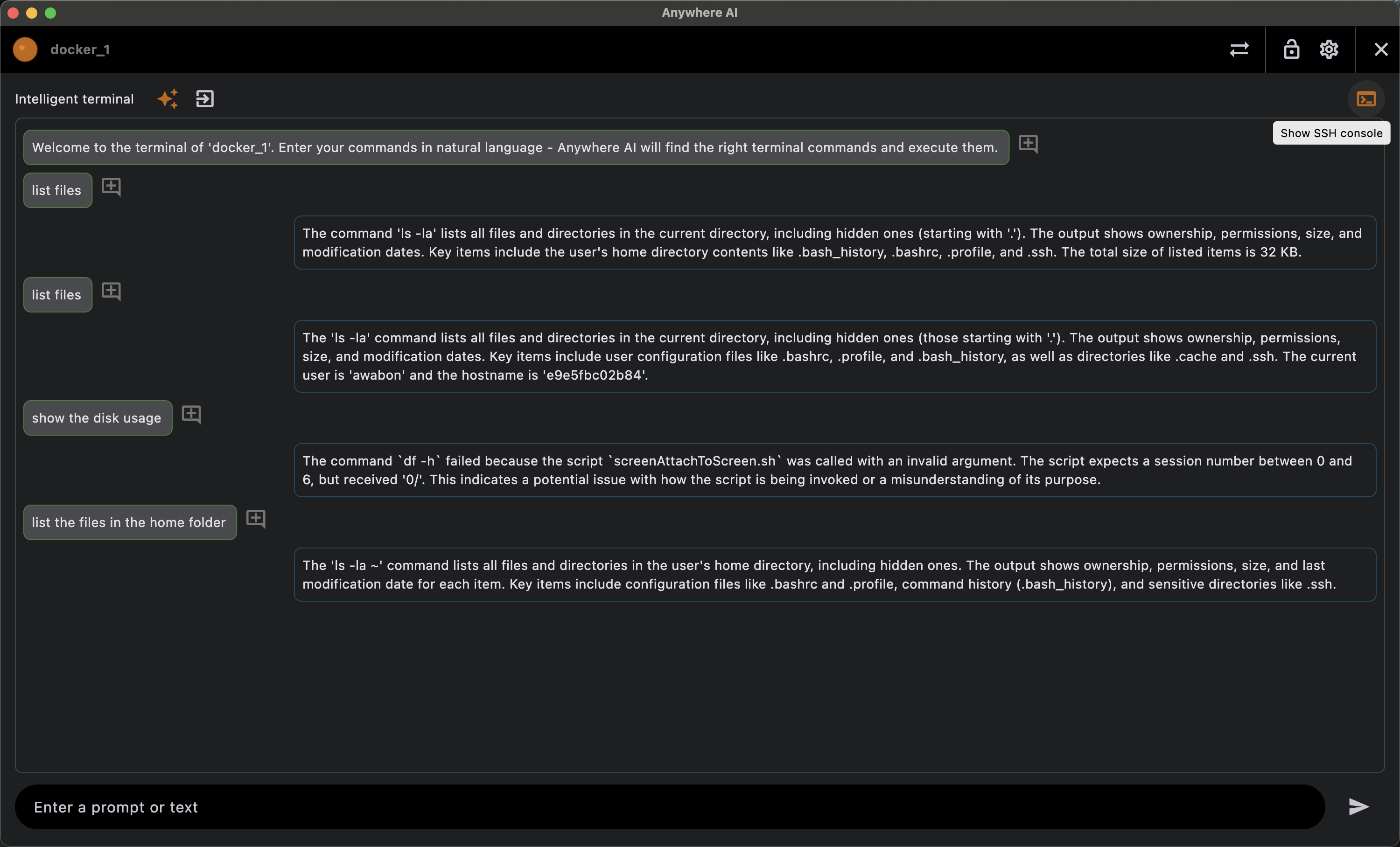
A terminal that can think
The Intelligent Terminal connects you to a device over SSH and lets you switch between two ways of working: a classic terminal where you type commands yourself, and a chat where you describe what you want in plain language and an AI assistant proposes and runs the commands for you. Both run through the same secure session.
Terminal and chat
- Terminal view — a live SSH terminal with real-time output for running commands directly on the device.
- Chat view — an AI assistant that understands a request, runs the needed commands and reports back what happened.
- Switch between the two views during a session; the header always shows the live connection status (initializing, connected, disconnected, failed and so on).
- Open up to four terminal windows at once, keep a command history, and save a set of commands as a script.
- Activate admin/root for commands that need elevated rights, and toggle end-to-end encryption for the session.
The AI assistant works with one of two provider keys — Google Gemini or Anthropic Claude. After a limited number of free assistant calls (the count depends on your plan) you need to supply your own key, which you set under Account settings — the Setup button on the Integrations prompt opens that same Account area.
In autoplay / autonomous mode the assistant can run its proposed commands for you automatically, and you can choose whether it interprets the results or just shows the raw output. Before a risky step it displays a safety warning box — for example when a command needs root, would delete data or be otherwise destructive, or needs input from you.
Run a command or ask the assistant
- Open the device from Remote and choose the Intelligent Terminal.
- Wait for the status to show connected.
- To work manually, stay in the terminal view and type your commands.
- To let the assistant help, switch to the chat view and describe the task (for example, “install the latest updates and reboot”).
- Review what the assistant runs and the output it returns.
- Disconnect when you are finished.
The number of free assistant calls and whether your own API key is required depend on your plan; see Licence & billing.
Return to the device list or pick another tool.