
System Monitor
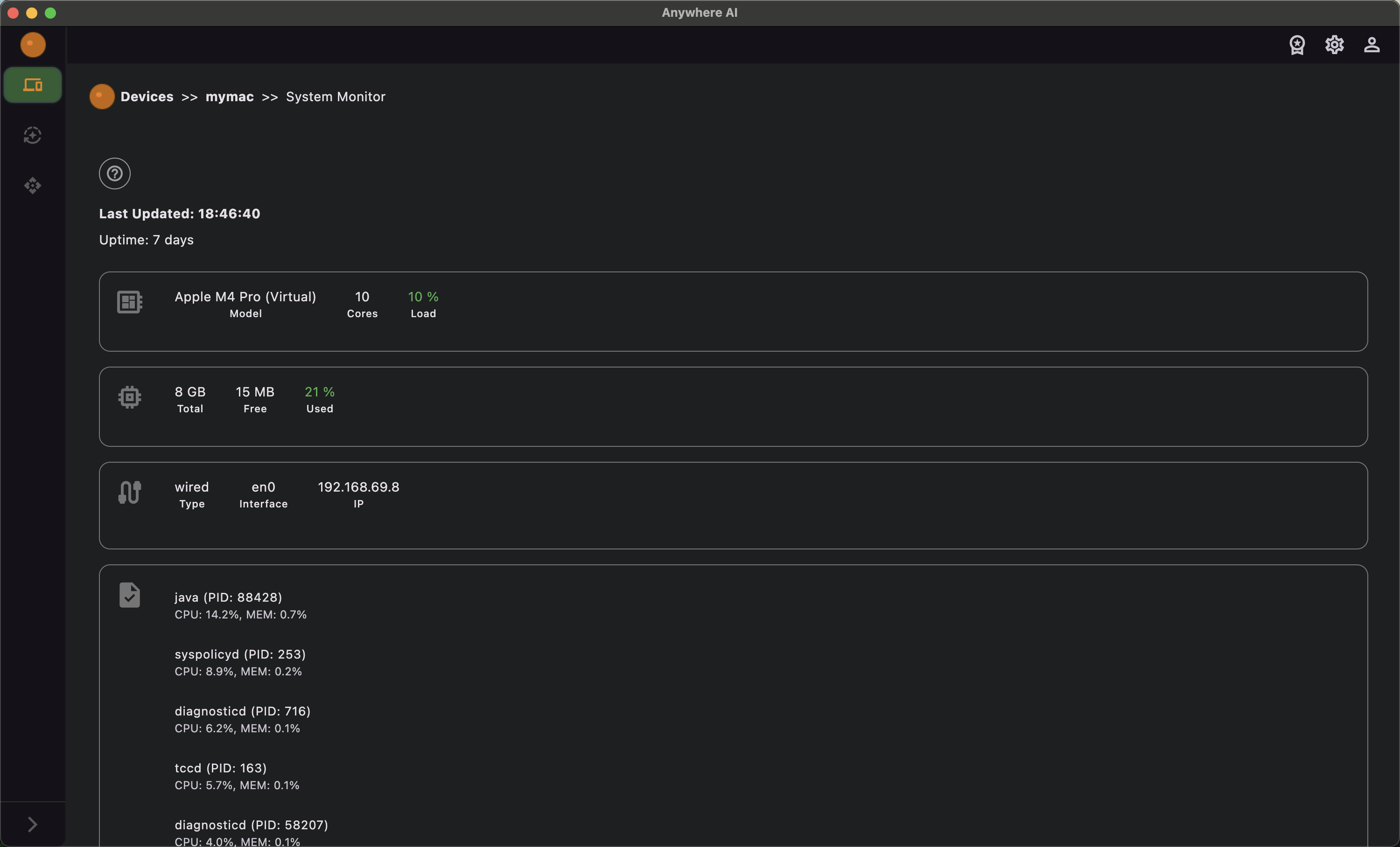
Live health of your device
The System Monitor shows the current state of a device at a glance. It gathers system data over the secure connection and presents it in clearly laid-out sections so you can check load, capacity and activity without opening a terminal.
What it shows
- CPU — processor load and details, with color-coded thresholds (green/orange/red).
- Memory — used and available RAM, also color-coded (green/orange/red).
- Network — network interfaces and information.
- Tasks — the list of currently active processes.
- Uptime & last update — how long the device has been running and when the data was last refreshed.
Check a device’s status
- Open the device from Remote and choose System Monitor.
- Wait for the data to load over the connection.
- Review the sections for CPU, memory, network and active tasks.
- Use the information to decide whether the device needs attention — for example stopping a runaway task or a memory-hungry process with the Intelligent Terminal.
Back to Remote
Return to the device list or pick another tool.