
Remote Desktop
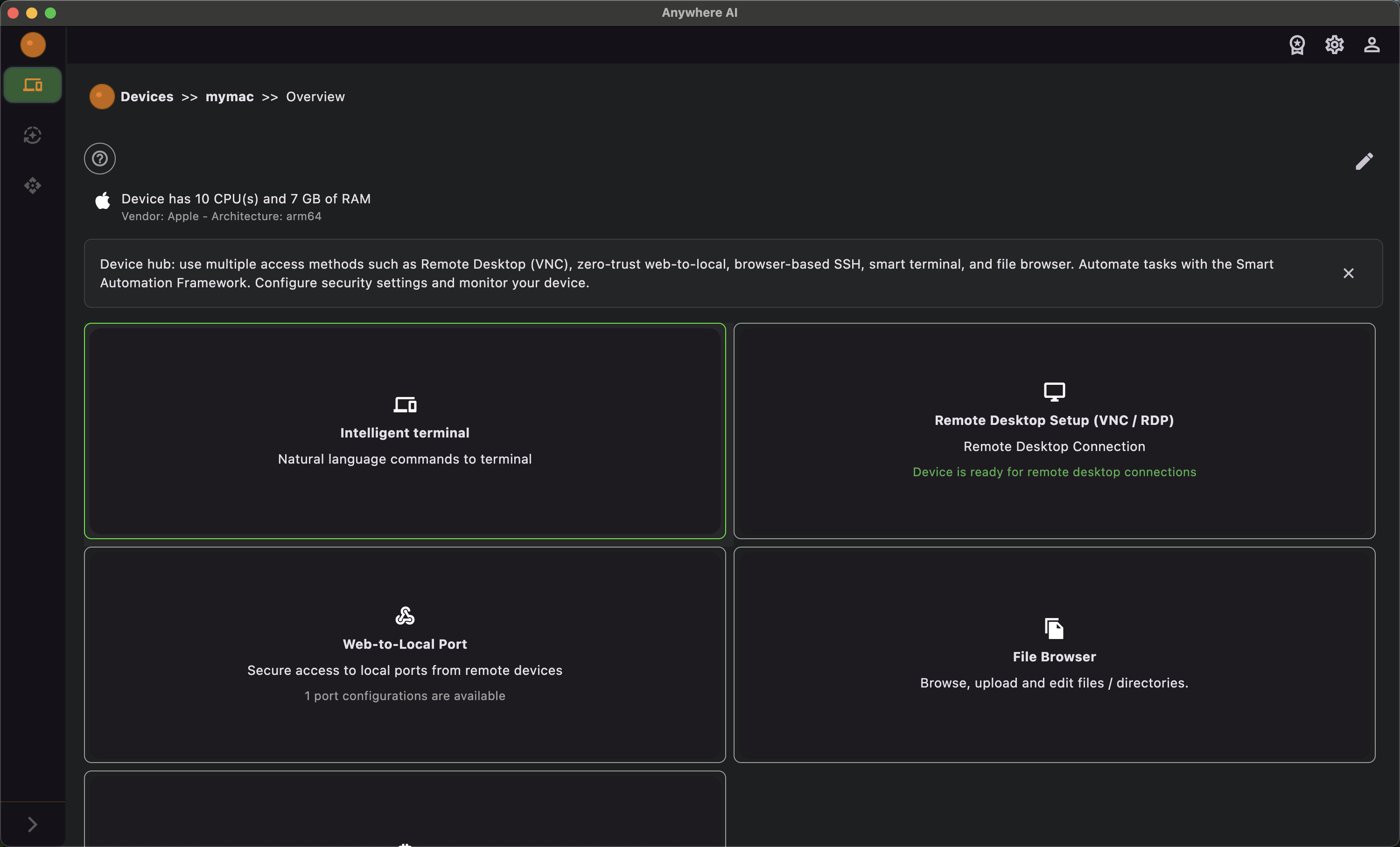
See and control the device screen
Remote Desktop gives you the full graphical screen of a device over a secure connection. Anywhere AI starts a remote-desktop server on the device for the session — VNC or RDP (Windows Remote Desktop) depending on the device — and lets you connect to it either straight from your browser or with a dedicated client.
How it works
When you open Remote Desktop, Anywhere AI checks whether the remote-desktop server is running on the device. If it is not yet running you can start it from this screen, and you can stop it again from here too; if there is a problem you are shown the status and offered options to re-check or get help. Once the server is running you are given connection instructions for both browser-based and client-based access, together with your daily usage — shown and refreshed live — so you can see how much of your allowance you have used.
Browser-based connection is not available on Android, iOS or macOS. On the macOS and Windows desktop apps a native connection client is offered instead, which can also open the connection automatically for you.
Start a remote desktop session
- Open the device from Remote and choose Remote Desktop.
- If the screen shows that the server is not running, start it and wait for the status to switch to running. Use re-check if needed. You can also stop the server again from this screen.
- Choose how to connect:
- In the browser — open the in-browser viewer for instant access (not available on Android, iOS or macOS).
- With a client — copy the provided
127.0.0.1:<localPort>address and use it with your preferred VNC or RDP application. Ready-made connection scripts are offered for Mac, Windows and Linux, and on the macOS and Windows desktop apps you can also let Anywhere AI open the connection automatically.
- Work on the device desktop as if you were sitting in front of it.
- When you are done, stop the session. Session time counts toward your daily limit shown on the page.
Maximum VNC session length and your daily minutes are set by your plan — see Licence & billing.
Return to the device list or pick another tool.