
Smart Automation
Self-driving tasks on the device
The Smart Automation platform runs on a connected device and carries out automation projects on its own. Once installed, it shows an overview of each project — its name, an optional summary, whether it is active and when it last ran — and keeps things moving in the background.
Three states you may see
- Installed and running — you see the project overview with the key details of each Smart Automation project.
- Not installed yet — you are prompted that installation is required, with a button to start the setup on the device. This state also shows the configured AI provider (Claude CLI or Gemini CLI) with a Change-Settings button and an "AI feature module" notice, since both installation and running need a provider key.
- Not supported — if the device cannot run the platform, an informative status message explains why.
Install the platform on a device
- Open the device and go to Smart Automation.
- If installation is required, choose the button to start the full-screen setup.
- The installer branches by provider — a Claude CLI installer or a Gemini CLI installer, matching the configured AI provider.
- The setup runs a multi-step installation over SSH, showing live terminal feedback as it prepares the device. You can stop it if you need to.
- When installation finishes, the project overview appears.
Create a project
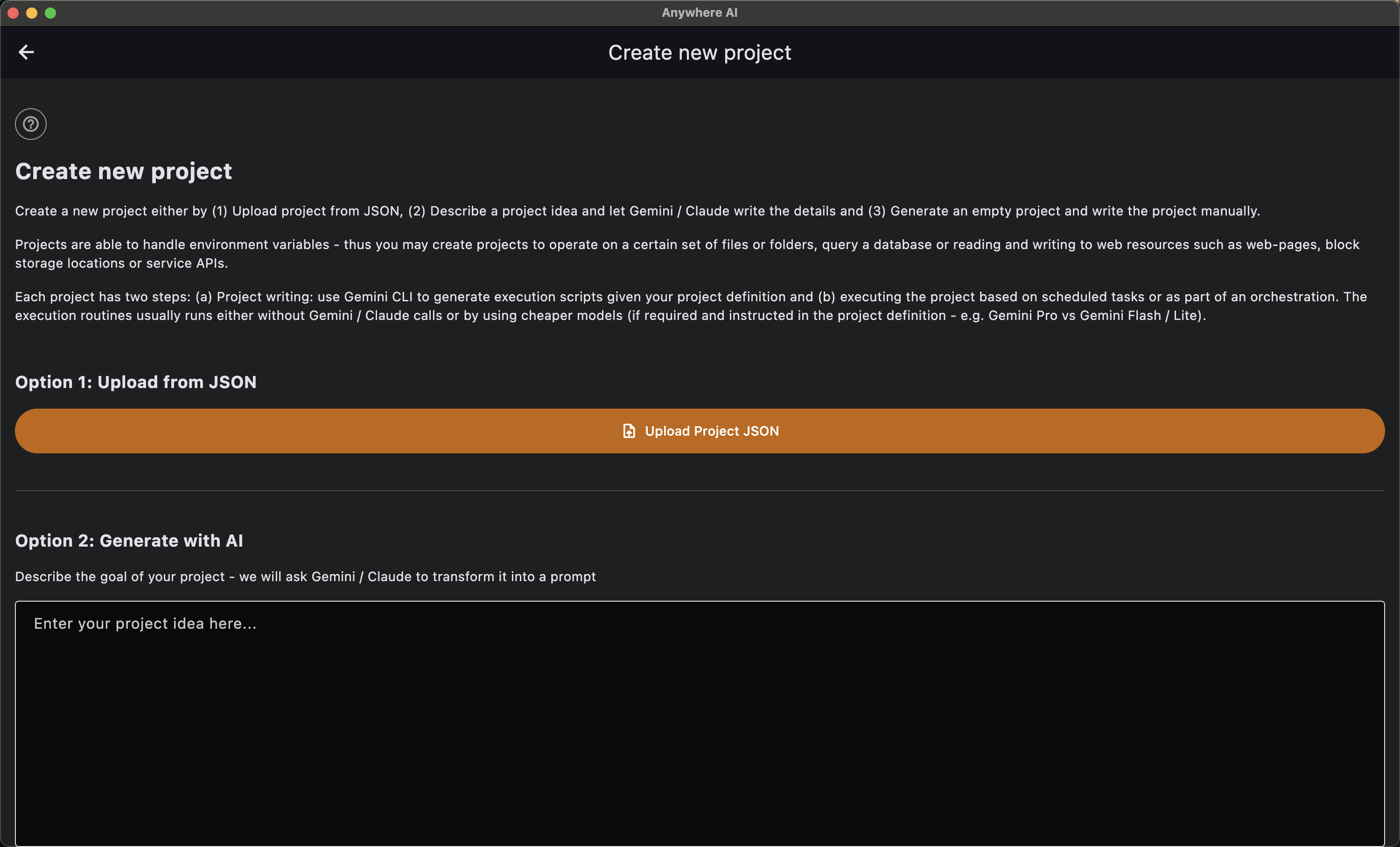
- From the project overview, start a new project.
- Choose one of three modes: upload from a JSON definition, generate with AI, or start an empty project.
- Author the project — projects follow a two-phase model, a writing/authoring phase and an execution phase, and support their own environment variables.
- The project appears in the overview, where you can run and manage it.
Manage automation projects
- Open the Smart Automation overview on the device.
- Use search to find a project, and open its Portal HTML summary to review results.
- Review each project’s status, summary, last execution time and agent type (single, multi or executor).
- Activate, pause or adjust projects as needed, and open a project’s Settings for its own options.
Project settings and result delivery
- Each project has its own Settings page.
- Control whether the project’s Portal page is published.
- Choose how results are delivered: copy them to a folder, or upload them to an S3 storage server using the S3 configuration.
Back to Automation
Return to the Automation overview and your projects.