
Set up an API project
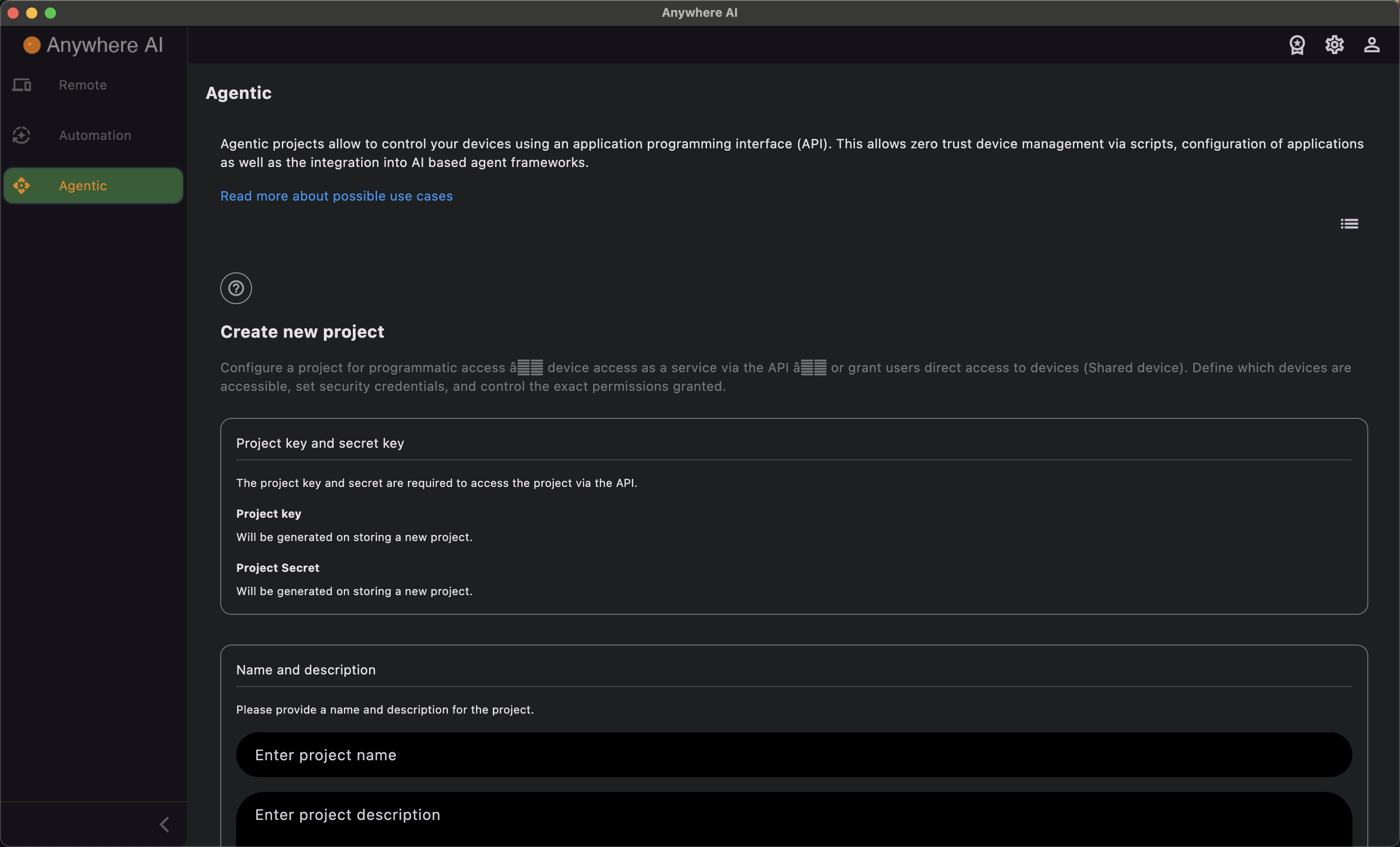
Define exactly what an agent may do
An API project is where you decide how much of a device an agent or external tool may control. You give the project a name and description, let Anywhere AI issue its credentials, choose the devices it may act on, and then grant a precise set of permissions — from administrator rights down to which folders and commands are allowed. Everything is off by default until you allow it.
Name and credentials
- Create or edit — start a new project or open an existing one to change its settings.
- Name and description — the project name must be at least three characters; the description is free text.
- Key and secret — the access key and secret are issued automatically by the backend when you first save the project. You do not generate or regenerate them; afterwards you can only view and copy them, and there is a helper to create an email containing the credentials. Secrets are stored encrypted.
Access mode
- API access — for agents and tools that call the Anywhere AI API programmatically with the project’s key and secret.
- Terminal / command-line access — used when another user adds the device as a shared device and works with it directly.
Devices and permissions
- Device selection — pick which of your devices the project may act on, with a select-all option. At least one device is required.
- Administrator (root) permission — a toggle that lets the agent act as root; otherwise it acts as a standard non-root user.
- Folder access — allow all folders, or a limited allow-list of absolute paths. For a limited list you can additionally allow writing to those folders and creating sub-folders.
- Command access — allow all commands, or a limited allow-list of permitted commands.
Terminal-mode extras
- Allow the agent to start and stop Remote Desktop (VNC/RDP) sessions.
- Allow the agent to start and stop Web-to-Local port forwards.
Configure a project
- Open Agentic and add a project, or open an existing one to edit it.
- Enter a name (at least three characters) and a description.
- Choose the access mode — API access or terminal / command-line access.
- Select the devices the project may act on (at least one; use select-all if needed).
- Set the administrator (root) toggle, then the folder and command permissions. When you choose a limited option you must select at least one device, folder or command.
- For terminal mode, decide whether the agent may control Remote Desktop and Web-to-Local.
- Save the project. On the first save Anywhere AI issues the key and secret; reopen the project to view and copy them.
You can import or export the permission configuration as JSON to reuse a setup across projects. The number of projects, sessions per day and command limits depend on your plan; see Licence & billing.
Back to Agentic
Return to the list of your API projects.