
Security & two-factor authentication
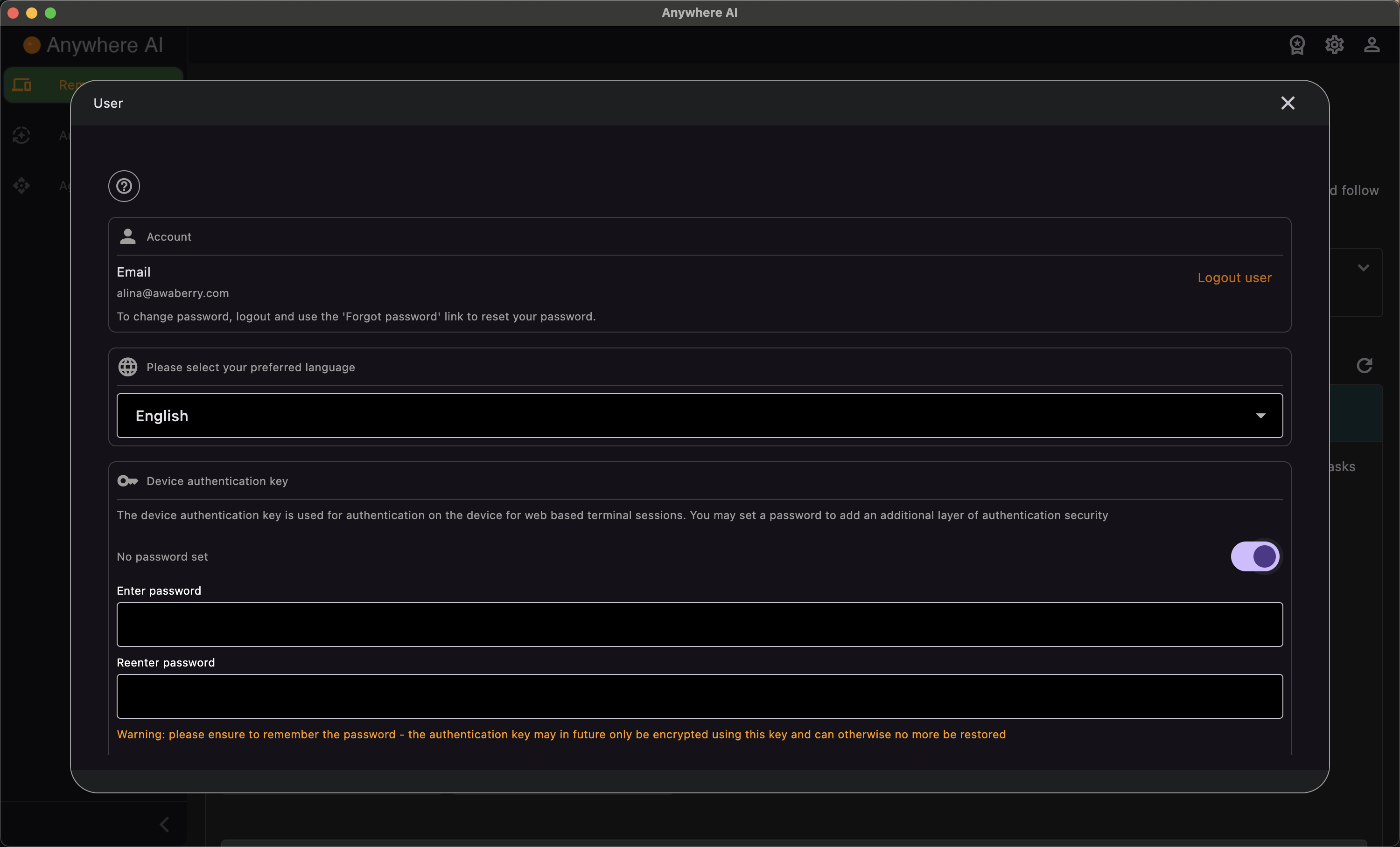
Protect your device connections
Anywhere AI encrypts the connections to your devices end to end. The security settings on your account page let you protect the key behind that encryption with a Device Authentication Key and, for a second layer, a key-file based two-factor authentication. Both secure the encryption of your device connections — they are not an account sign-in setting.
Device Authentication Key
The Device Authentication Key is a password that protects the end-to-end-encryption key used for your device connections. From the security section on the account overview you can:
- Set a Device Authentication Key.
- Remove it again.
- Optionally have it remembered, so encryption is applied automatically without re-entering the key each time.
Two-factor authentication for device encryption
Two-factor authentication adds a second layer to the encryption of your device connections using a key file. The flow is:
- Download a key file.
- Upload and activate that key file to enable two-factor authentication.
- Deactivate it again whenever you want to turn it off.
- Optionally choose to remember the key in the browser so you do not have to provide it every time.
Again, this secures the encryption of your device connections, not your account login.
Set a Device Authentication Key
- Open Account and scroll to the security section.
- Enter a Device Authentication Key and save it.
- Optionally have it remembered so encryption is applied automatically.
Enable two-factor authentication
- In the same security section, download the key file.
- Upload and activate the key file to enable two-factor authentication.
- Optionally choose to remember the key in the browser.
- To turn it off later, deactivate it.
Return to your account overview.